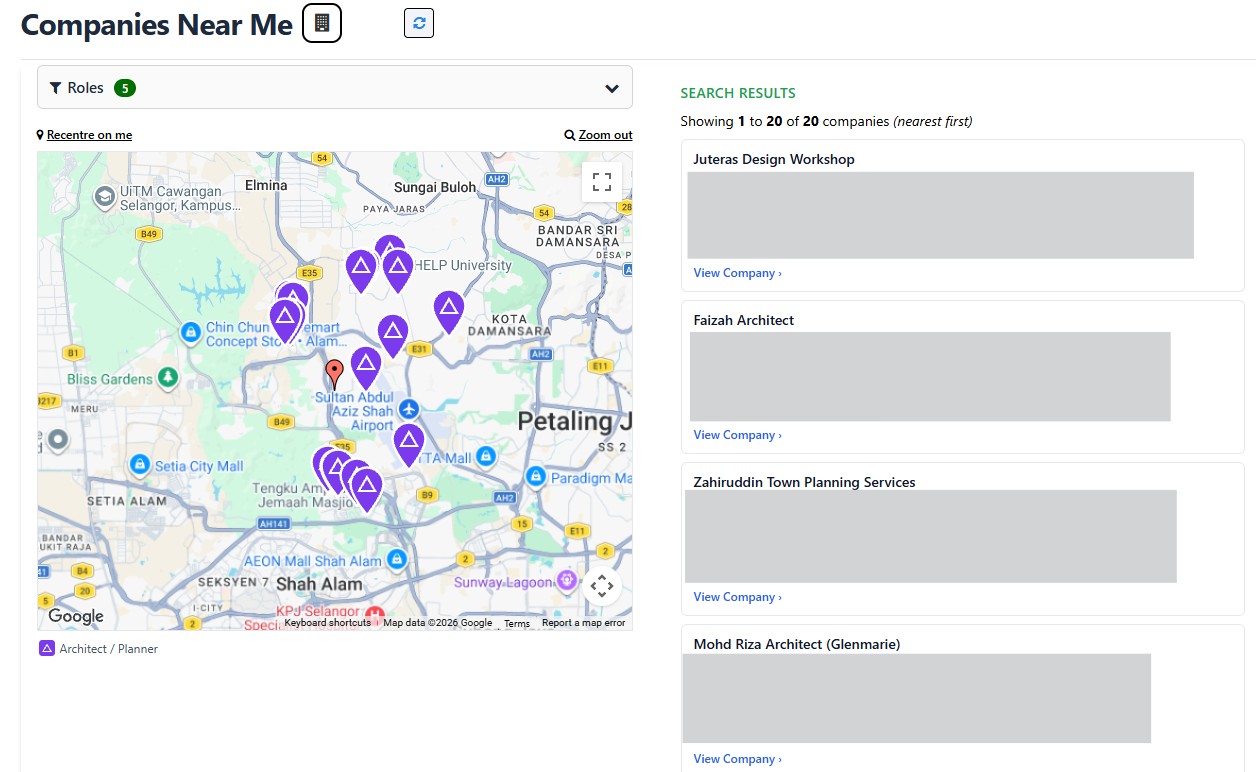
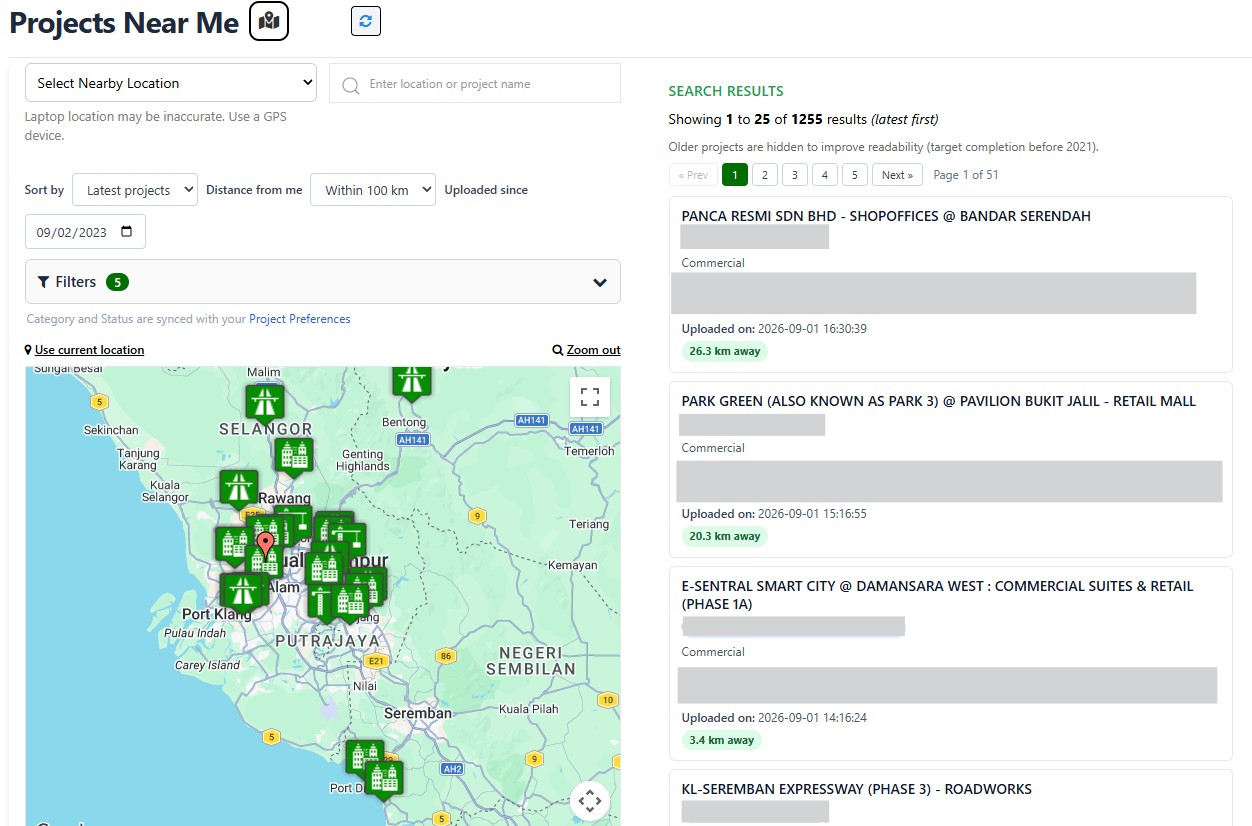
Every time as you enter mybina.com.my, you will be presented with its HOME page. If you are a new user, you will probably feel a bit overwhelm by all the going-ons on the page. But worry not! It's safe enough to explore the page by clicking any links and figure out what they do. So far, nobody has broken mybina by just clicking all the links. Good to know, yes? But, just in case you are not the adventurous type, fret not, just continue reading these Tutorial series. They are designed in byte sizes, so they are easy to digest!
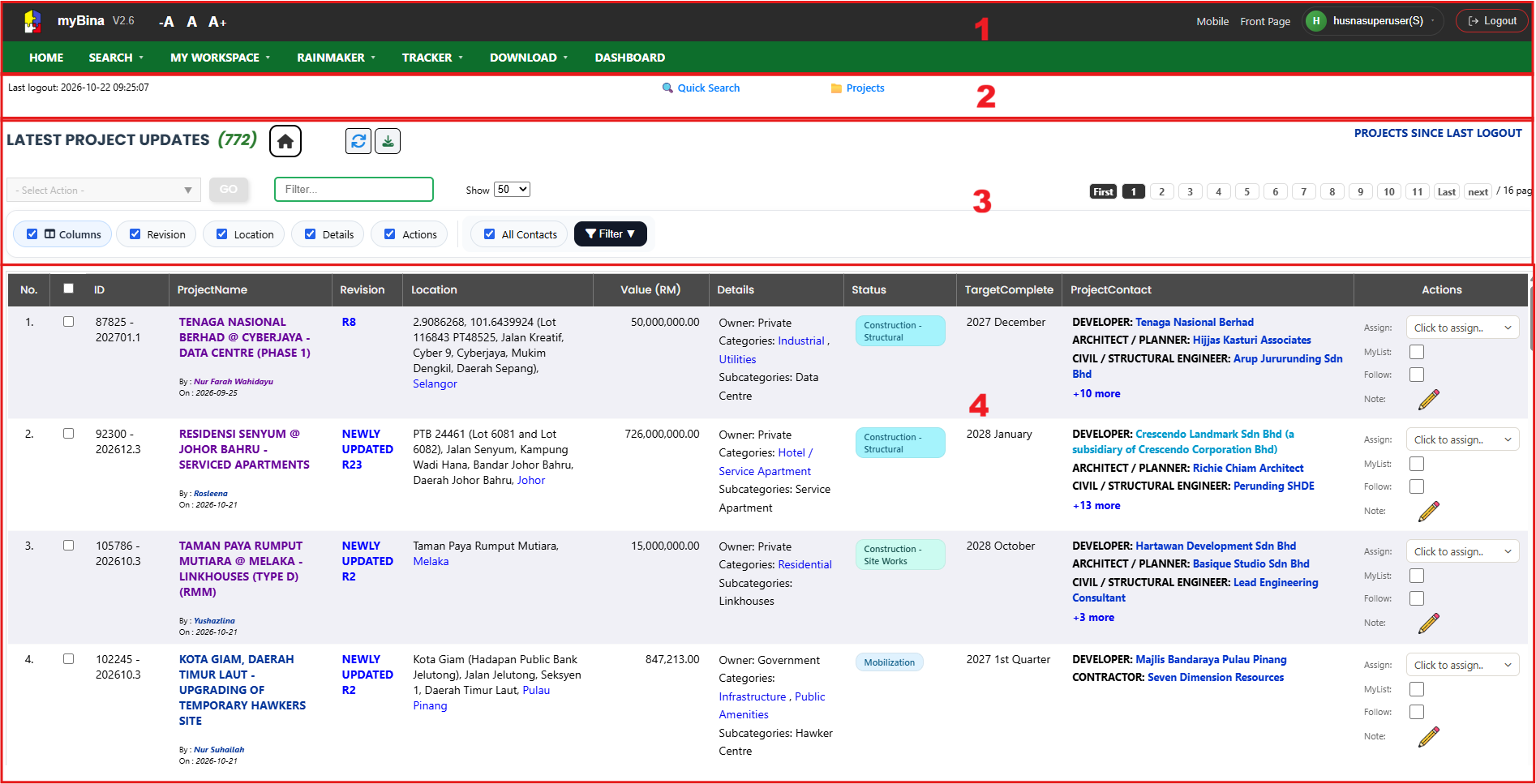
Section 1 - Navigation Bar
Represents the Navigation Bar. The label beside your username indicates your account type whether it is Super User (S), Normal User (N) or Basic User (B).
Section 2 - Quick Search
Allows you to hover over the words to see a popup. It enables faster searches directly from the homepage, saving your time as you do not need to visit the search page. This quick search is also available on the project and company search results and listing pages.
Section 3 - Table Controls
This section contains the table controls. You can select actions, filter the table, navigate between pages, and choose which columns to show or hide.
Section 4 - Table Section
This section displays the project records, with each row representing a project and each column showing key information and its latest update. For details about the available columns, see the user manual.
Go to next page