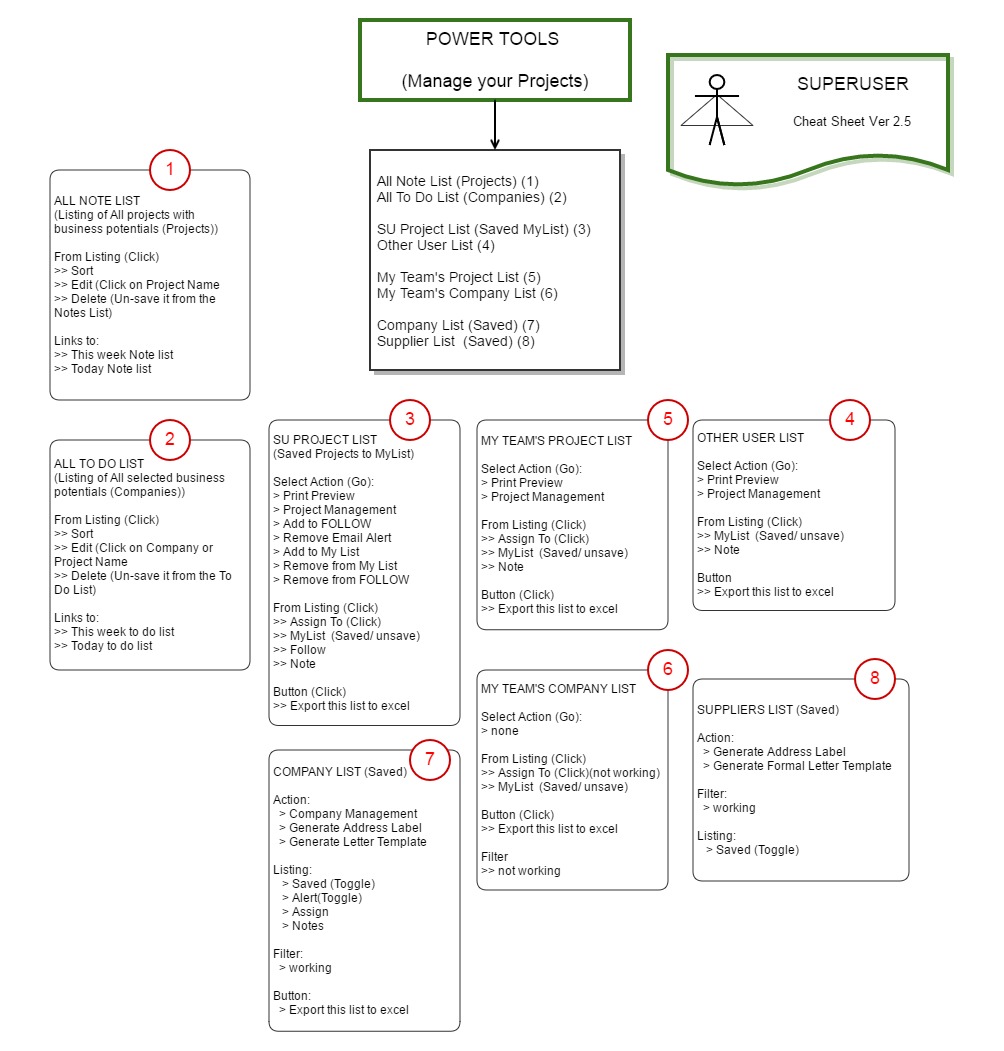
As they say, if you are registered as the Super User, more super powers for you! You will get access to all modules and click on everything that is clickable, unlike other users!
But remember great powers come with great responsibilities! (Remember Spiderman?)
The major superpowers that you can weild are:
1. able to create Teams and assign projects to them
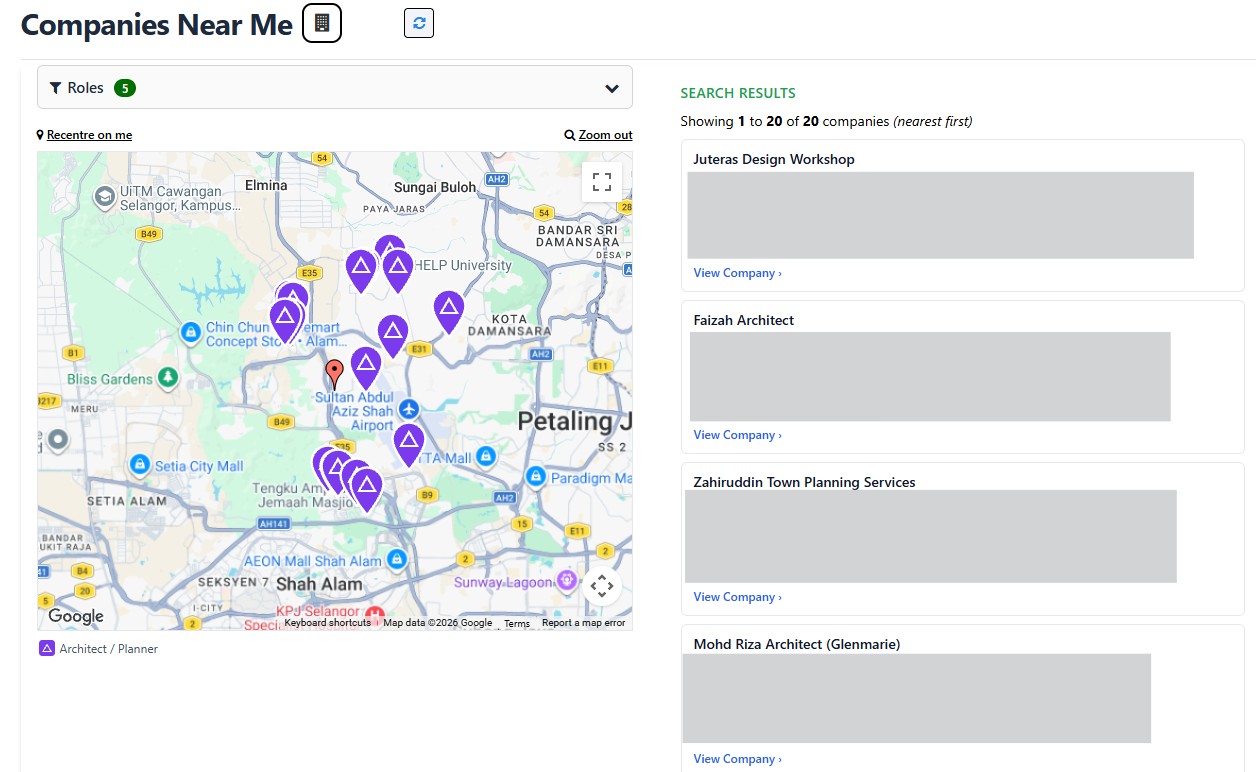
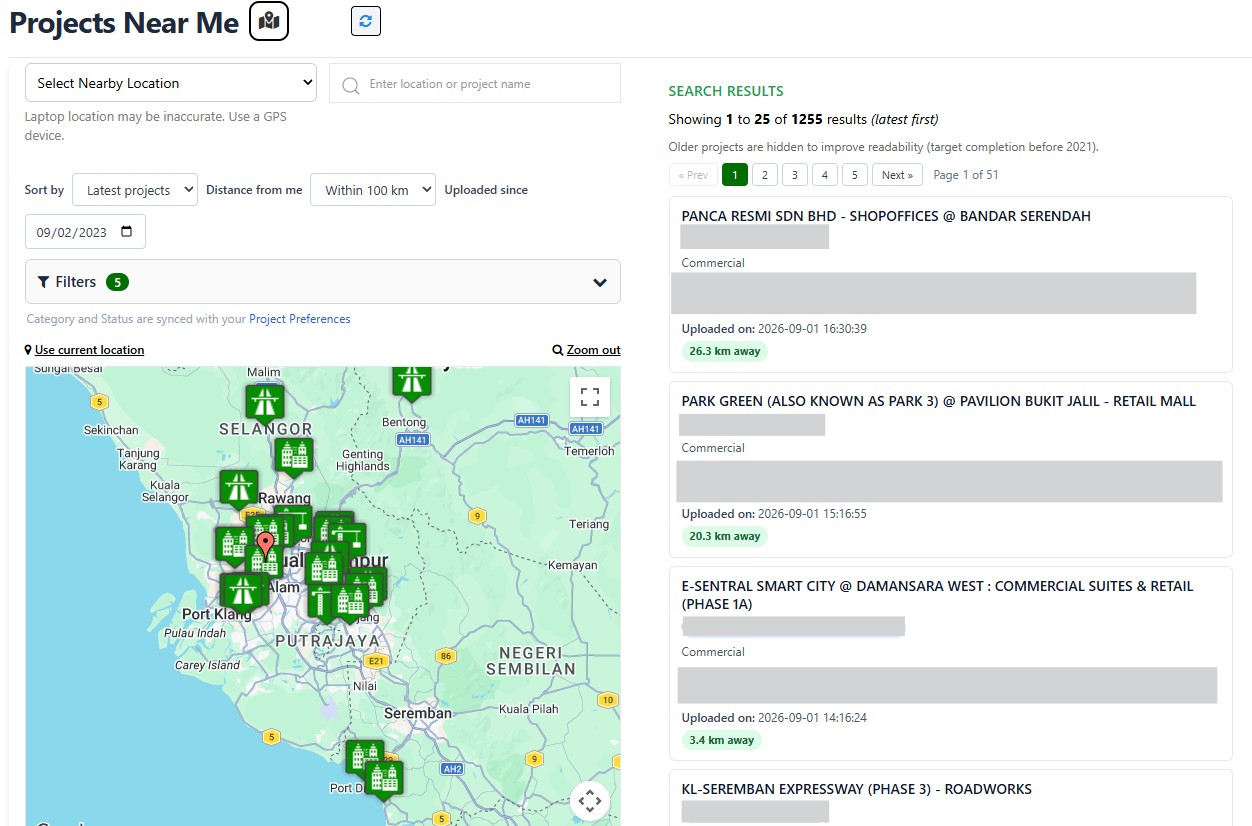
2. able to see other users' projects
3. able to assign projects/ companies to other users (Basic users)
4. able to post Company Memo
How to create teams
a) Go to Team Management : Click your username at the top right, beside the Logout button, and select "Team Management".
b) On the Team Management page
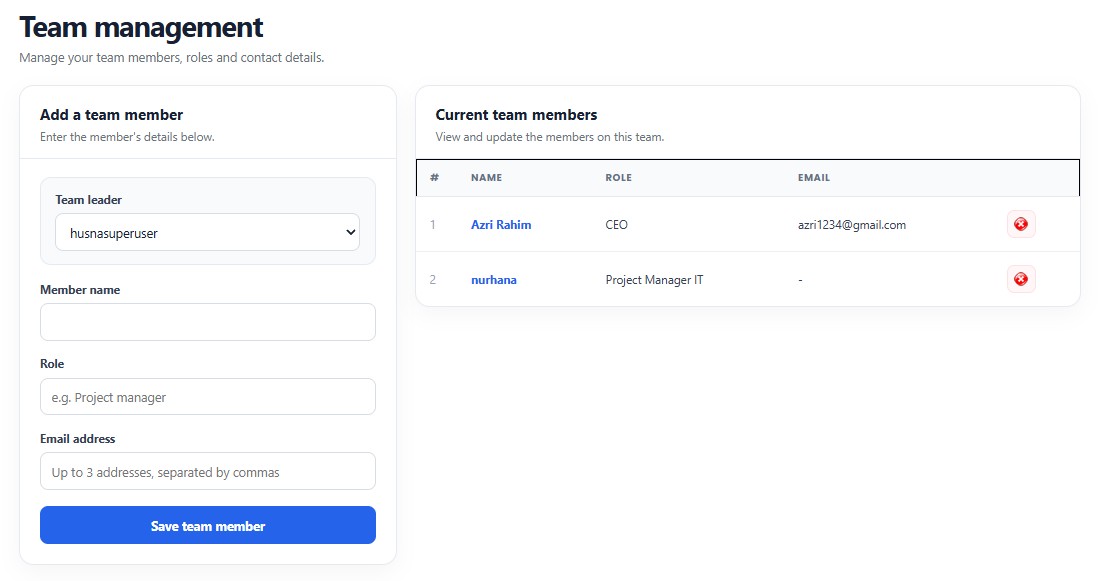
- Choose Team Leader (A team leader is any user with a password within your company)
- Add New Team Member by filling in his/her name, role & Email
- Click on Save team member
Now you have your new team ready to go and conquer the world! (Yay!)
** Unfortunately your team shares password with you - that's your Kryptonite; therefore remember to always Log Out of the system every time you are done using mybina, so other members of your team can access mybina.
c) Now to assign the projects:

Within a project listing, whenever you see a project you like to save, you can do so by clicking the relevant box under "MyList". If you click the checkbox, the project will be automatically assign to you.
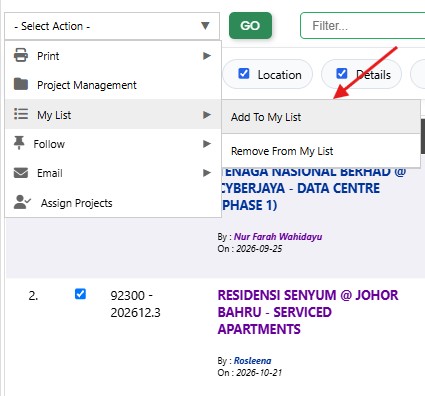
You can also assign multiple projects to yourself at once. Select the checkboxes for the projects, then choose Add to My List from the action menu above My List.
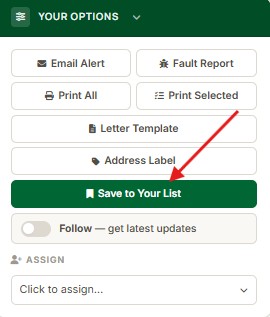
If you are looking at a Project Page, you can save the project by clicking on the "Save to Your List" button.
Now go to MY WORKSPACE at navigation menu, and click on "My Team's Project List". This will take you to "My Team's Project" page. You will see all the projects that you have selected to save earlier saved on MyList (or your username's List). Below that you will see other listings belonging to your team members. If this is the first time you are doing this, the listings for your team members will be empty.

To assign a project to a team member—or, for Super Users, another user in the same company—select their name from the dropdown beside Assign. The project will then appear in that user’s list.
Thus, ends the first part of this blog post. See you on the 2nd part soon. Adios!